m0wnt Control Panel
Full Panel On Mobile Device
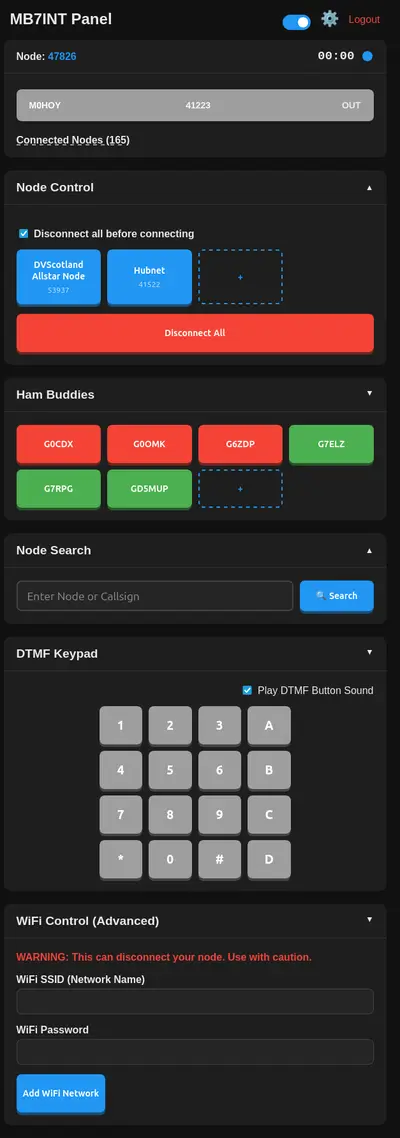
Here is a screenshot of the m0wnt control panel on a mobile device, it is split into 6 sections.
Control Panel Top
The control panel top consists of Callsign, in this case MB7INT Gateway, Switch to change dark mode to light mode, Cog to alter your settings for username and password and logout link.
Node: 47826: this is your node number.
00:00: TX RX timer, this will start counting, ideal for seeing your transmit time.
Blue Dot: this stays blue on idle, green on receive and red when you transmit.
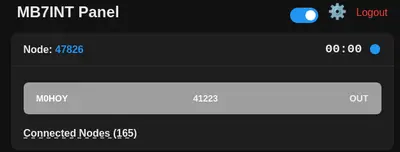
Grey Bar: stops grey when idle, green on receive and red on transmit. Also it shows the node your connected to in this case M0HOY, node number and whether it's a outbound or inbound connection. You can click on this button and see the node details and also disconnect from the node.
Connected Nodes (165) this tells you how many nodes are connected to M0HOY if you click this it will show you all the nodes connected and node numbers, you can click a node number to see more information (this will open in new page).
Node Control Panel
The tick box is if you want to automatically disconnect before connecting, if this is ticked you can just hold your favourite button for half a second and this will connect your node to a node of your choice.
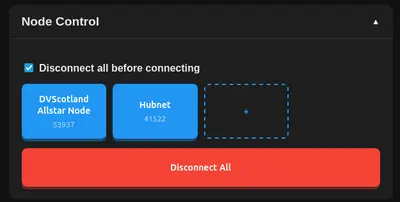
You can add/remove your favourite nodes and choose up to 4 different colours, you only need to input the node name and node number eg: Name: Hubnet, Number: 41522. If you hold the button for approximately 2 seconds you can either edit or delete that button.
If you enter a * first in the node number box, this will override connect and disconnect command eg: *B6 restarts asterisk (if enabled).
Ham Buddies
The Ham Buddies buttons are there to tell you if you have a friend on the same node number as yourself. Red if offline and Green if online.
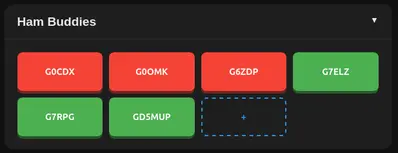
If your friend has a repeater or gateway with his or her Callsign this will show up green if the gateway or repeater is connected to the same node number.
Node Search
You can enter a Node Number or Callsign to see if that particular node is connected and where it is connected, ideal if you are trying to find one of your friends on the allstarlink server.
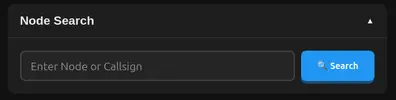
Please Note: Do not repeatedly keep finding callsigns and node numbers because the allstarlink system will barr your ip address, so please use sparingly. You've been warned!
DTMF Keypad
You can use the DTMF Keypad to control your node on your mobile phone just like you would on a handheld transceiver.

Wifi Control
You can add new Wifi credentials using this panel, ideal if you want to quickly connect your node to another network. You will probably have to reboot your node to take effect.

Hamvoip connects to the first node in the list, so probably best to add your imprtant wifi addresses first.
How To Install on Hamvoip Default Installation
Warning this is done at your own risk!!!
First of all ssh into your node and from the main menu choose "start bash shell interface" press enter after each command.
cd /home
Copy and paste this command one line at a time:
curl -sL -OJ "https://www.airepeaters.co.uk/?dm_download=install.sh"
chmod +x install.sh
./install.sh
If all goes well you will be presented with a Y or N question, press Y to proceed and answer all the questions.
--- Configuration ---
Enter AMI Host (default: 127.0.0.1) i kept this default and so should you!
Enter AMI Port (default: 5038) i kept this default and so should you!
Enter AMI Username (e.g., your webpanel) i chose webpanel?
Enter AMI Secret (password): its up to you?
---Node Settings---
Enter Your Node Number: " YOUR NODE NUMBER
Enter Your Callsign: YOUR CALLSIGN
---Web Admin Settings---
Enter a Web Admin Username (default: admin): " ADMIN USER i just entered admin!
"Enter a new Web Admin Password: " ADMIN PASS
"Confirm new Web Admin Password: " ADMIN PASS CONFIRM
After completion just reboot your node and then go your ip address of your node number in your browser.
Type in Username: admin
Type in Password: whatever you chose for web password.
If all went well congratulations.
73's
Neil
m0wnt.
Please note: I have a life and i cannot nurse everyone installing the script! If you don't feel confident then don't install it. I'm not a programmer and Ham Radio is just a hobby!